From 5 Sites to 50: How to Manage Multiple WordPress Sites as You Grow
Posted in CategoryGeneral Discussion Posted in CategoryGeneral Discussion-
Gxn 360 4 days ago
Nobody plans to look after 30 WordPress sites. It happens one client, one brand or one side project at a time, and the method that worked for three sites quietly stops working somewhere around ten. This article shows how to manage multiple WordPress sites at each stage of growth, so you change your setup before it breaks instead of after.
The idea is simple: what you need at 5 sites is different from what you need at 50. Most problems come from running a 50-site portfolio with a 5-site method.
Stage 1: two to five sites
At this size, doing things by hand is fine. You can log into each site, run updates, glance at the front end and move on. The work is small enough that you remember every site's quirks.
What to set up now, while it is still easy:
•A simple inventory. One spreadsheet with each site, its host, its owner, its login method and the main plugins it runs.
•Off-server backups. A backup stored on the same server as the site does not help when the server is the problem.
•Basic uptime alerts. Even a simple check means you hear about an outage before the site owner does.
None of this takes long, and all of it makes the next stage much easier.
Stage 2: five to twenty sites
This is where most people feel the pain. Updates pile up faster than you apply them. You are not sure every backup actually ran. Passwords live in three different places. A plugin update breaks one site and you only notice when someone emails you.
The fix at this stage is not working harder. It is changing three habits:
1.Standardize your stack. Use the same small set of plugins for forms, caching, SEO and security wherever you can. Fewer different plugins means fewer surprises and faster updates.
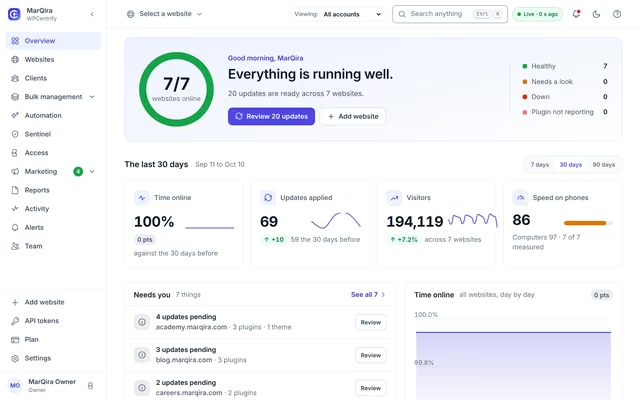
2.Move to one dashboard. Logging into twenty wp-admins is where the time goes. A central view of updates, backups and uptime turns twenty jobs into one.
3.Update in batches, not all at once. Update a few low-risk sites first, check them, then do the rest. If something breaks, it breaks on one site, not twenty.
Stage 3: twenty to fifty sites and beyond
At this size the job becomes operations. You are no longer looking after sites, you are running a system. Three things matter most.
Tier your sites by risk
An online store that takes orders all day is not the same as a five-page brochure site. Put your sites into two or three tiers. The top tier gets updates tested first, tighter monitoring and a restore you have actually rehearsed.
Give people their own access
With a team, shared admin passwords become a real risk. Give each person their own access with the right role, and make sure you can remove someone from every site in one step when they leave.
Keep a record and report on it
When something breaks, the first question is always what changed. A log of updates and changes answers it in seconds. If you serve clients, the same record becomes a monthly report that shows the work you did.
What changes at each stage, at a glance
Stage What usually breaks What to add
2 to 5 sites Nothing yet, but habits form An inventory, off-server backups, basic uptime alerts
5 to 20 sites Update backlog, unchecked backups, password sprawl A standard plugin stack, one dashboard, batched updates
20 to 50+ sites Team access, no record of changes, all sites treated the same Risk tiers, individual access, an activity log and reports
Five signs you have outgrown your current setup
•You find out a site is down from the owner, not from an alert.
•You are not sure when a site's backup last ran, or whether it would restore.
•Updates wait for weeks because doing them feels risky.
•More than one person knows the same admin password.
•You cannot say in one minute what changed on a site last week.
If two or more of these sound familiar, it is time to move to the next stage, not to try harder at the current one.
Tools to manage multiple WordPress sites at the next stage
Tools for this job fall into three groups: doing it by hand, a self-hosted plugin you run on your own server, and a hosted platform. Whichever you choose, look for safe updates with a way back, backups you can restore, monitoring that does not cry wolf, and access you can control per person.
For a hosted option, WPCentrify is built for exactly this growth path. It connects to any self-hosted WordPress site on any host, runs updates with automatic rollback if a check fails, keeps backups you can restore, and checks uptime every 60 seconds from three locations. It is free during early access. If you want the longer, step-by-step version of this process, there is a full guide to running a WordPress portfolio.
Common questions
Should I use WordPress Multisite instead?
Only if your sites are near-identical and share an owner, plugins and hosting. Multisite runs every site from one installation, so one bad update reaches all of them at once. Most portfolios with different clients or brands are better as separate sites looked after from one dashboard.
How many sites can one person look after?
It depends far more on the setup than on the person. By hand, most people struggle past ten. With a standard plugin stack, batched updates and one dashboard, the same person can look after many more, because the routine takes minutes per site instead of an hour.
What should I automate first?
Backups and uptime monitoring. They run on their own, they rarely cause problems, and they protect you on the worst day. Automate updates next, but only with checks and a way to roll back.